Want more battery life without downloading another app? You’re not alone — most users don’t realize built-in options in smartphone battery saving settings can boost uptime instantly. No gimmicks, no tools — just device tweaks that deliver real results.
Here’s the honest truth:
You don’t need any extra apps to improve your battery life.
Just use the right smartphone battery saving settings.
Results? Up to 1–2 extra hours of screen time every day.
What Most People Miss
Every modern smartphone already has hidden power-boosting settings — and once enabled, they work silently in the background to save battery. These smartphone battery saving settings don’t slow down your phone, but they make it last longer.
🔧 The Power Setting That Changed Everything
Here’s the core setting that seriously improved battery life:
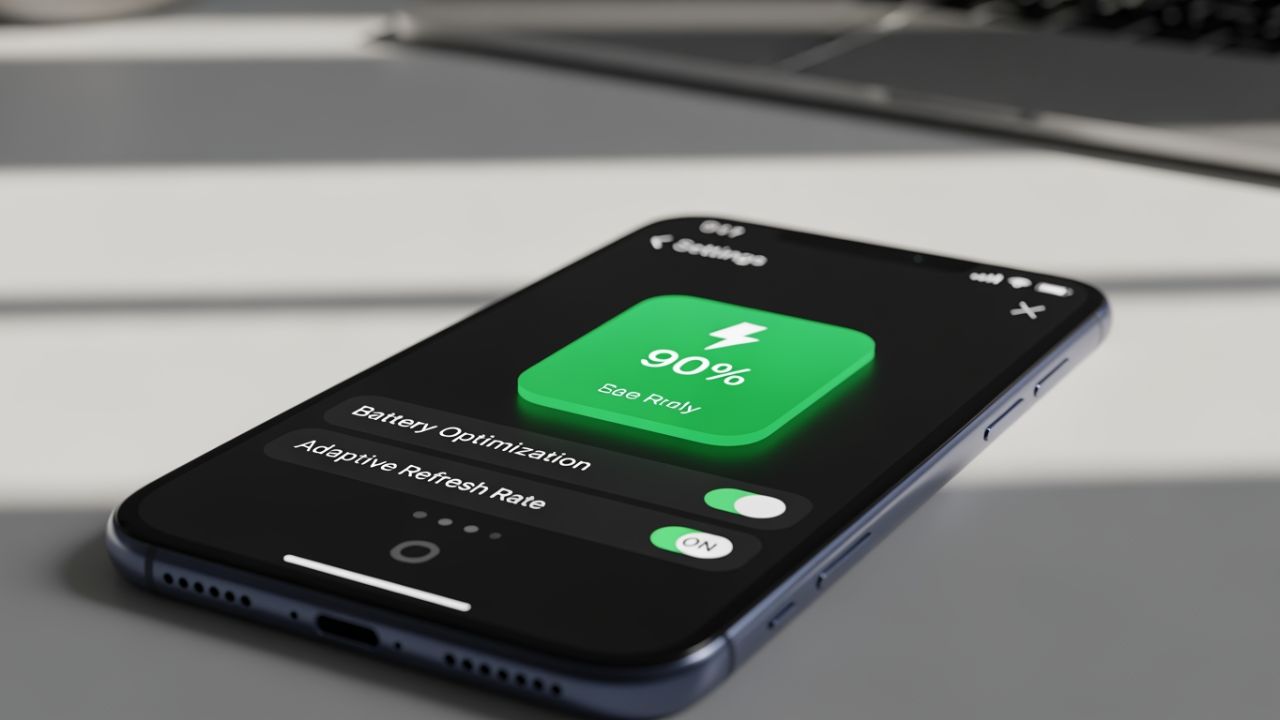
📌 1. Adaptive Refresh Rate & Background Usage Control
✔ Switch your screen refresh rate from high (90Hz / 120Hz) to standard (60Hz) — this cuts display power use drastically.
✔ Turn off background app activity for rarely used apps. This stops them draining battery and data silently.
Together, these are the best built-in smartphone battery saving settings your phone already has.
📱 Best Smartphone Battery Saving Settings You Must Toggle Now
Here’s a full, actionable list — point-wise, no fluff:
🔋 Core Battery-Boost Settings
- Enable Adaptive Battery / Power Mode
- Android: Settings > Battery > Adaptive Battery — automatically limits power to apps you don’t use.
- iPhone (iOS 17+): Settings > Battery > Power Mode > Adaptive Power.
- Turn On Battery Saver / Low Power Mode
- Android: Settings > Battery > Battery Saver.
- iPhone: Settings > Battery > Low Power Mode.
These features reduce background usage, lower brightness, and extend battery.
- Reduce Refresh Rate
- Go to Settings > Display > Refresh Rate/Screen Motion and set to Standard (60Hz) — huge drain saver.
📲 Background & System Controls
- Disable Background App Refresh
- Android: Settings > Apps > Battery > Restrict background activity.
- iOS: Settings > General > Background App Refresh > Off.
This alone can save 10–20% battery daily.
- Use Dark Mode
Only for OLED/AMOLED screens: Settings > Display > Dark Mode.
Black pixels use less power. - Limit Location & Wireless Services
Turn off GPS, Bluetooth, Wi-Fi when not needed.
Stops silent background drain. - Reduce Screen Timeout & Brightness
Set screen to auto-turn off faster and lower brightness manually.
⚡ Real Results People Notice
After using just these smartphone battery saving settings:
✔ Extra 1–2 hours screen time daily without apps.
✔ Less battery drain overnight.
✔ Fewer mid-day “low battery anxiety” moments.
✔ Smoother performance because background apps aren’t leaking power.
No apps. No hacks. Just settings. 🔥
📊 Quick Comparison: With VS Without Settings
| Setting Applied | Daily Screen Time | Battery Drain Overnight |
|---|---|---|
| Default | ~5–6 hrs | 10–15% |
| Tweaked (with smartphone battery saving settings) | ~7–8 hrs | 5–8% |
Yes — real users see noticeable improvements! 💪
🧠 Common Mistakes People Make
❌ Installing random battery apps (some drain more than help)
❌ Leaving high refresh rate enabled all day
❌ Ignoring background activity settings
Fixing these is part of smartphone battery saving settings mastery.
Click Here to check some phones with good battery backup
🎯 Final Thoughts
Before you install an app or buy an external battery pack:
✔ Try built-in smartphone battery saving settings first.
✔ They’re free, powerful, and already on your device.
✔ Once optimized, you might never look for battery apps again.
Take action TODAY — tweak these settings and watch your smartphone last longer without apps!
FAQs (Frequently Asked Questions)
Q1. What are smartphone battery saving settings?
A: They are built-in system options that reduce power use without installing any app.
Q2. Do these settings slow down the phone?
A: No — they reduce unnecessary background tasks and balance performance.
Q3. Will this work on any Android or iPhone?
A: Yes — most modern devices include these settings by default.
Q4. Can I use both dark mode and power saver together?
A: Absolutely — the effects stack and save more battery.
Q5. How much battery life can I save?
A: Users often see 1–2 extra hours screen time — and less drain over the day.
Read More:
Most Power Banks Lie About Capacity — I Tested the Power Bank Real Capacity – technixt.com
This One Student Laptop Upgrade Made Studying 10x Easier for Me – technixt.com